

For example, if you have aDocumentation Index
Fetch the complete documentation index at: https://rive-binding-data.mintlify.app/llms.txt
Use this file to discover all available pages before exploring further.
teamName property bound to a text run in your scene, changing the teamName value updates the displayed text automatically.
You can change property values in the editor or at runtime, allowing you to create dynamic experiences that adapt to each user.
Bindings are not limited to visual properties. You can bind values throughout your file, including transforms, animation speeds, converter values, script inputs, transition condition values, and more.
This allows the same data to drive behavior, animation, and logic across your scene, helping keep everything in sync.
Binding a Property
Let’s control theX position of a circle using circleX, which is a Number property in our View Model.
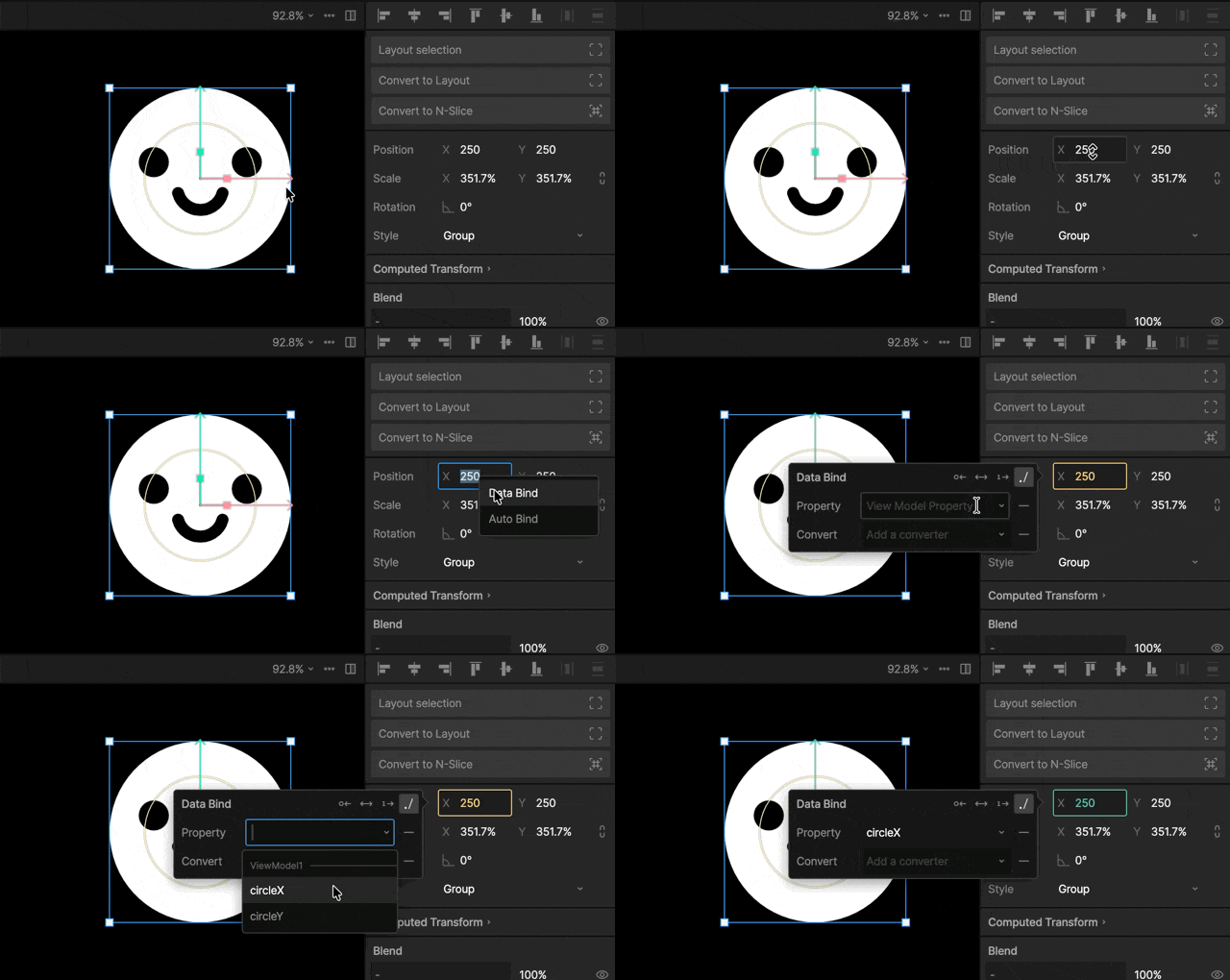
The
X field should now be highlighted in green, indicating that it’s bound to a value.
The circle’s horizontal position is now driven by the circleX property. Any time the property’s value changes, the circle updates automatically.
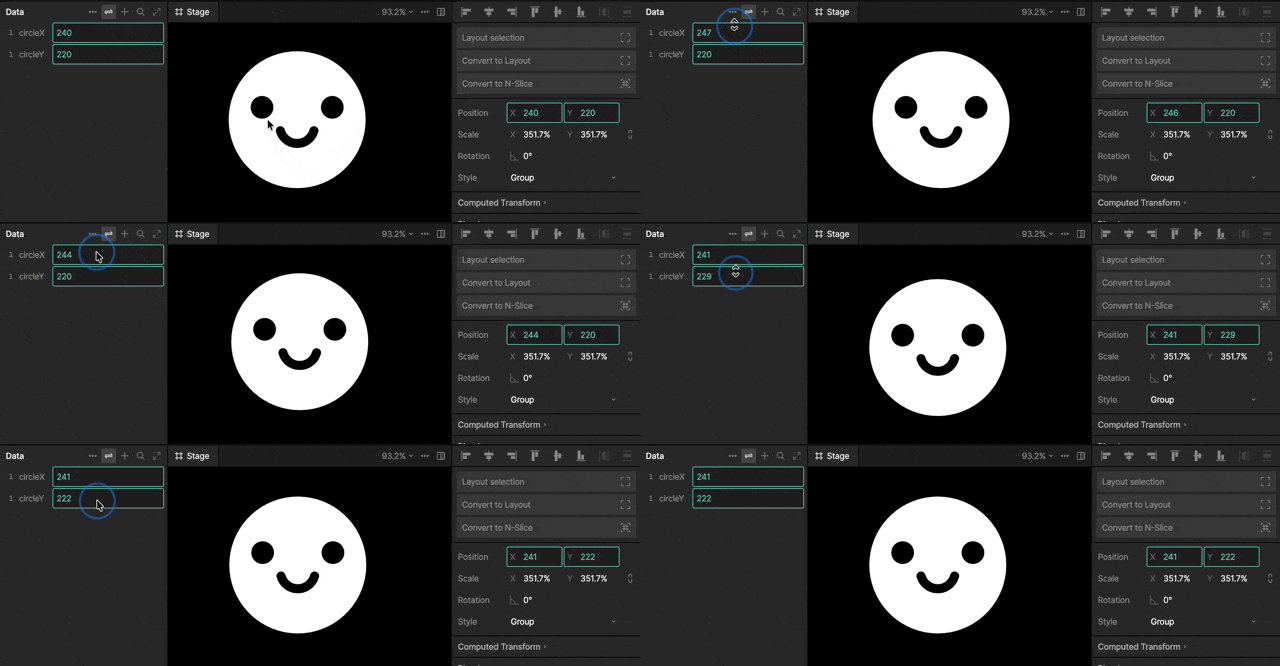
Previewing BindingsBy default, your data only controls your elements when the state machine is playing.To preview your data-bound values, turn on the Data Binding Preview Toggle.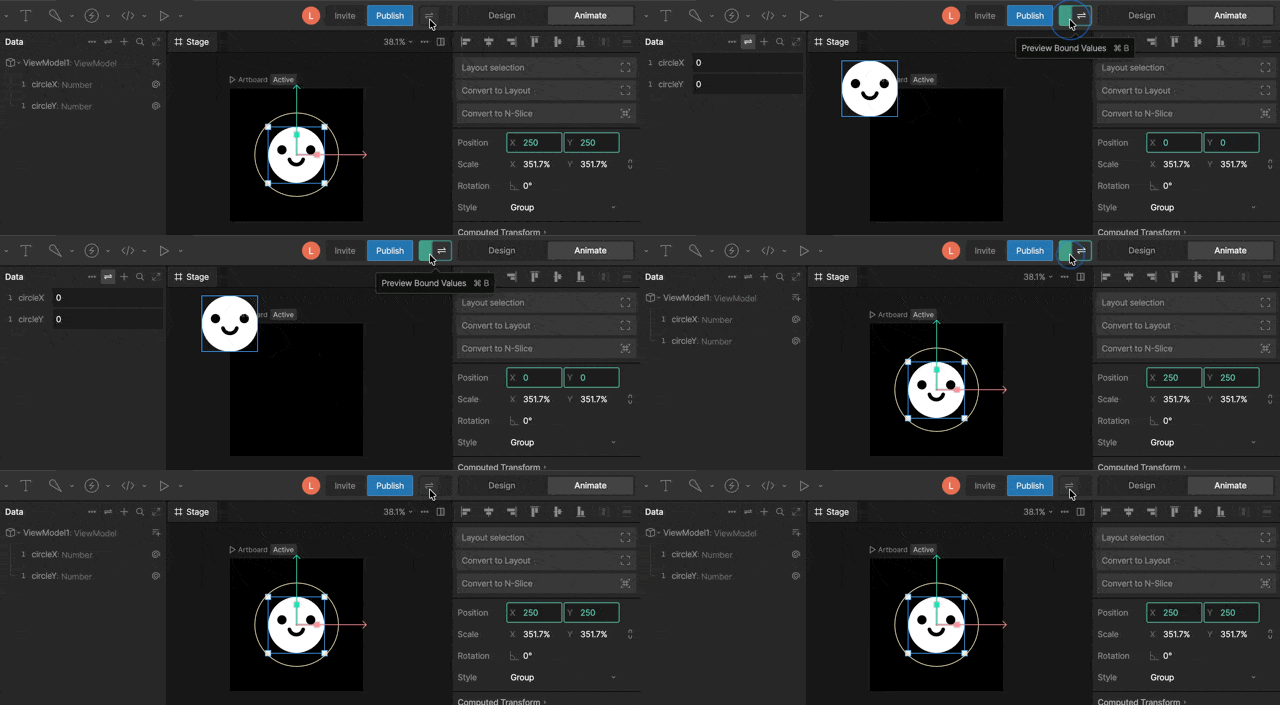
Updating a Binding
Right-click the bound element and select Update Bind.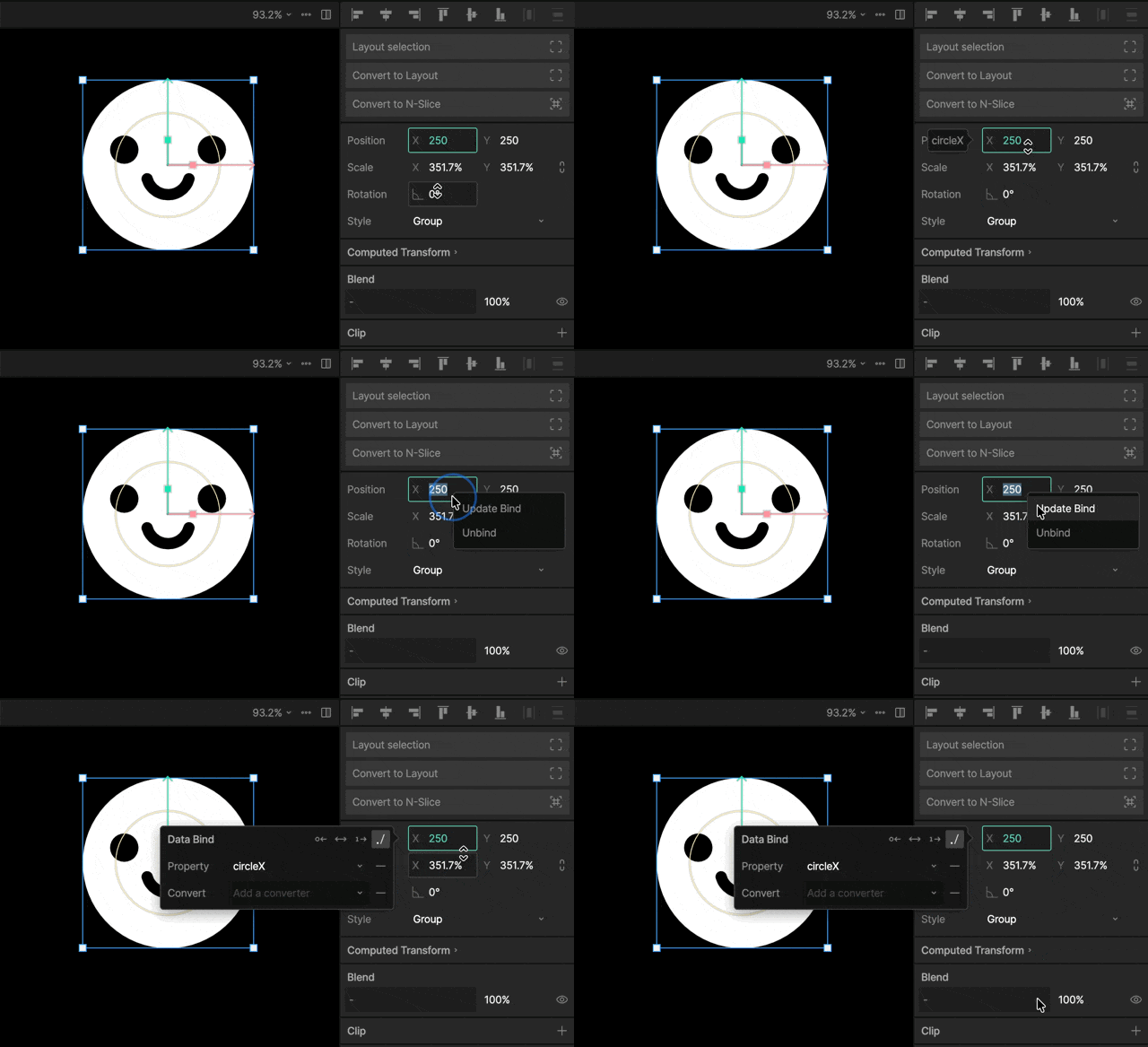
Removing a Binding
Right-click the bound element and select Unbind.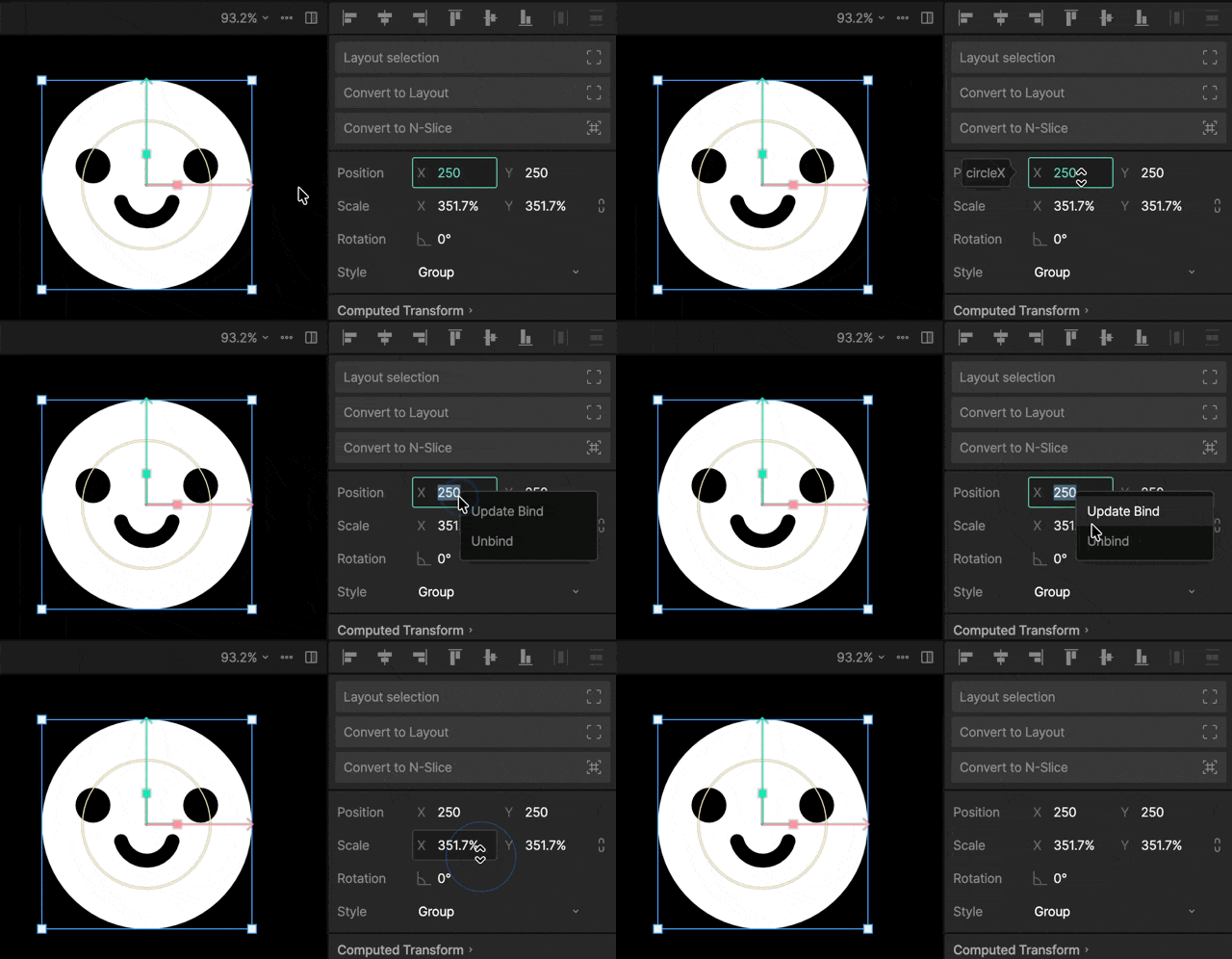
Binding Options
Each binding has the following properties.Property
The View Model property the target is connected to.
Path
When binding to nested View Models, there may be multiple properties with the same name available. The path determines which specific property instance the binding should use.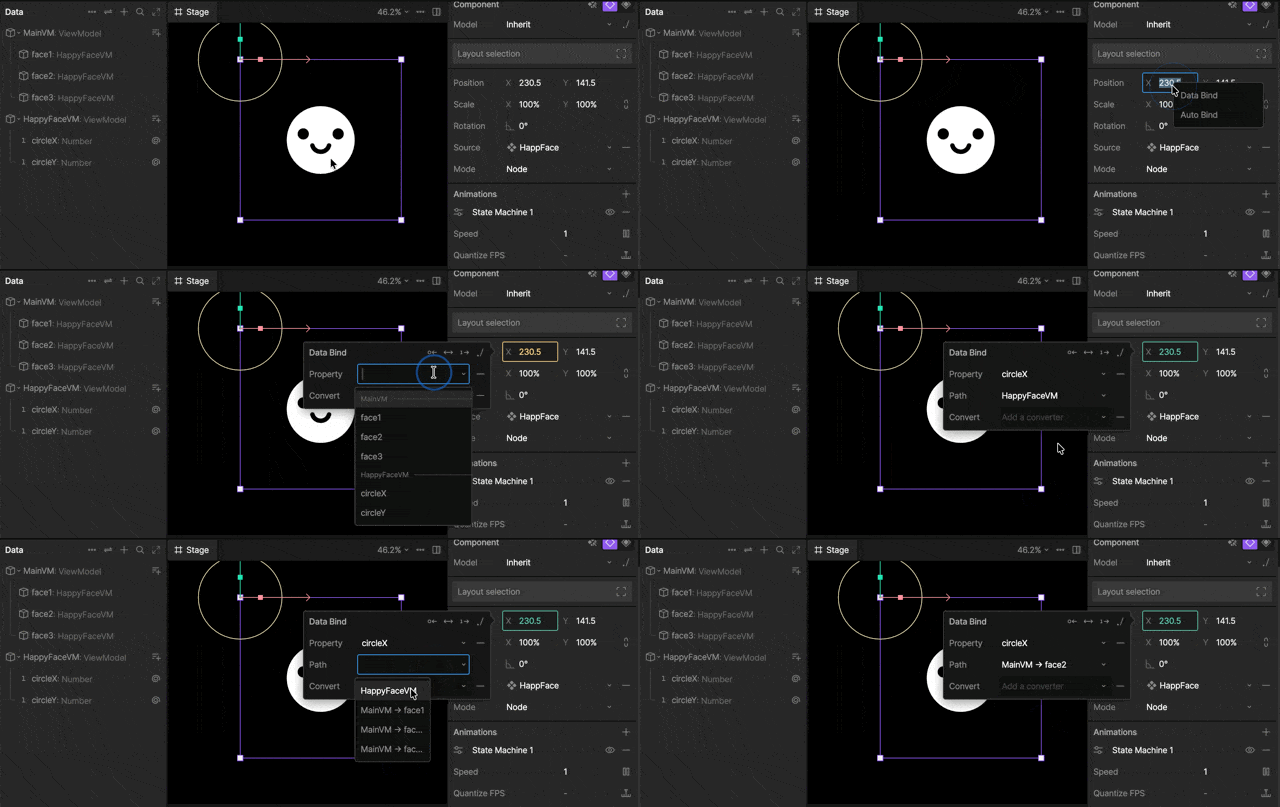
Bind Direction
By default, the View Model property (source) controls the bound element or value (target), but it can also work the other way around.Target to Source
When a binding hasTarget to Source toggled on, a change to the element will update the view model property.

Bidirectional
A change to the view model property will update the element AND a change to the element will update the view model property.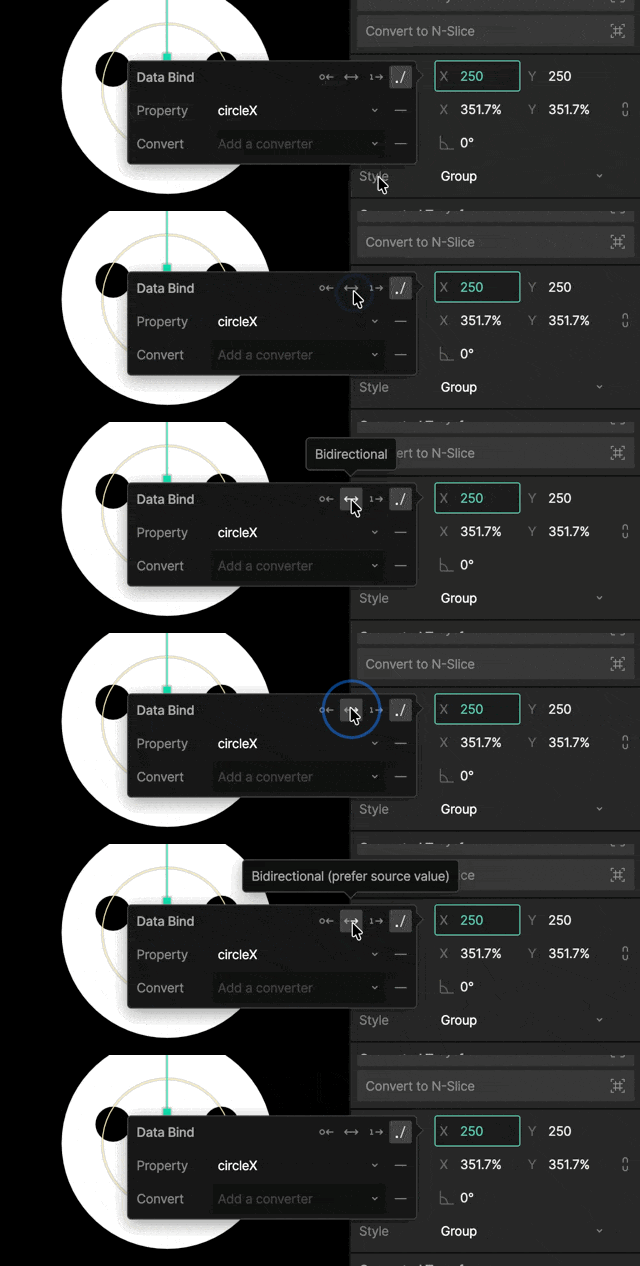
Bind Once
When Bind Once is enabled, the binding only applies the value a single time when the scene starts or the binding is created.
Absolute vs Relative Binding
By default, new data binding connections are created as absolute binds.- Absolute Binding: The binding points to a specific property instance within the View Model hierarchy.
- Relative Binding: The binding searches for a property with a matching name relative to the current context.